Check · Self-print
Run a self-print to check the connection
If you have a solid blue power and solid green network light, let's run a quick self-print. This will help us ensure the CloudPRNT Service is still active. The printer timing out or manually resetting the printer can disable the service. Don't worry, we will walk you through those steps.
Self Print
- Press the Power button to turn off the printer.
- Once the printer is off, hold down the Feed button.
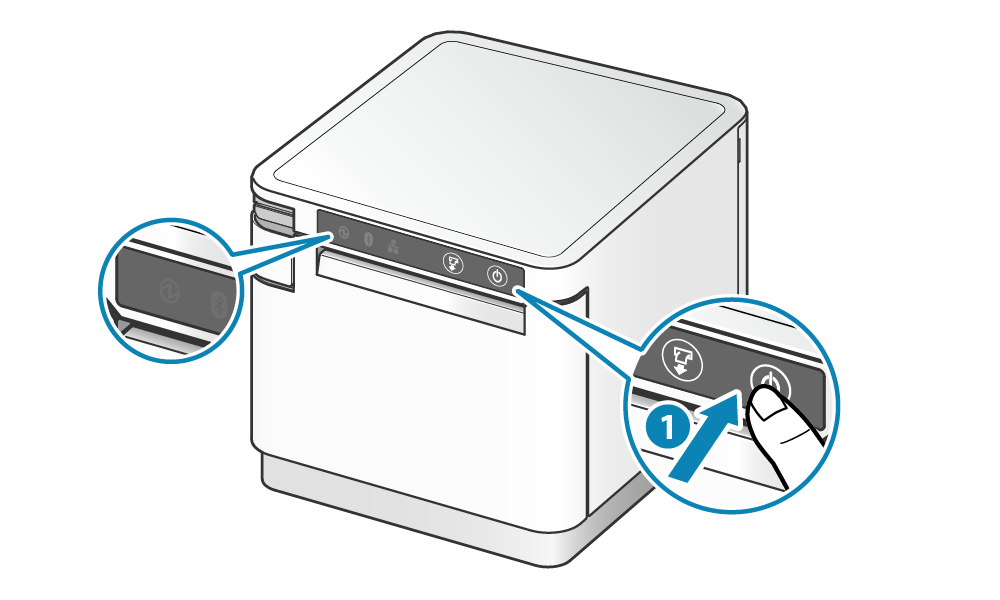
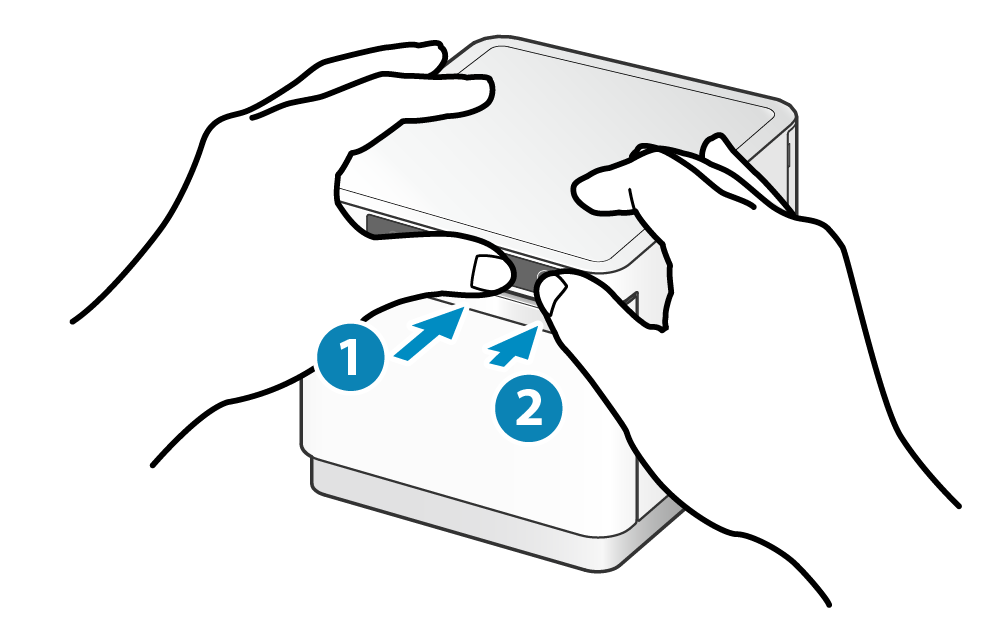
- While holding Feed, press the Power button to turn the printer on.
- Release the Feed button once the self-print starts.
We're looking for the second receipt that prints — typically labeled Network Configuration.
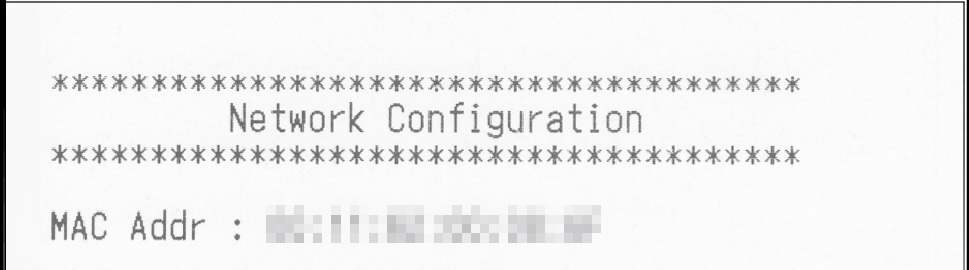
Check the CloudPRNT Status
Near the bottom of the second receipt, locate the heading for <<Star CloudPRNT>>. Directly under it is the line CloudPRNT Service: — it reads either Enabled or Disabled.
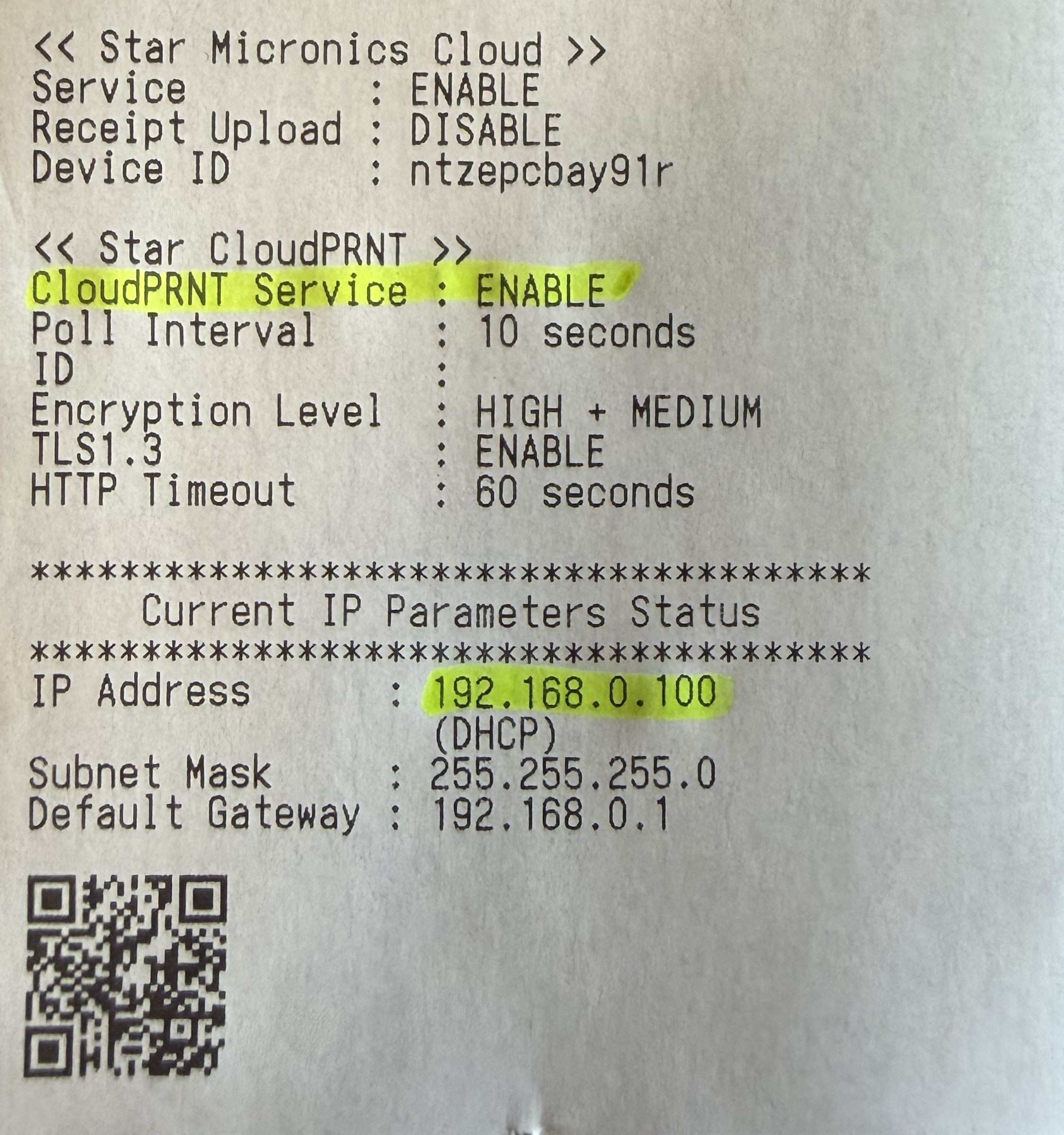
If it says Enabled
CloudPRNT is on, so the printer doesn't need reconfiguring. Receipts aren't getting through because of a network issue — contact your store's IT team to check the printer's network connection.