Jane Printer Troubleshooting
Follow these steps to get back online. Most issues resolve within 5 minutes.
Step 1 · Setup check
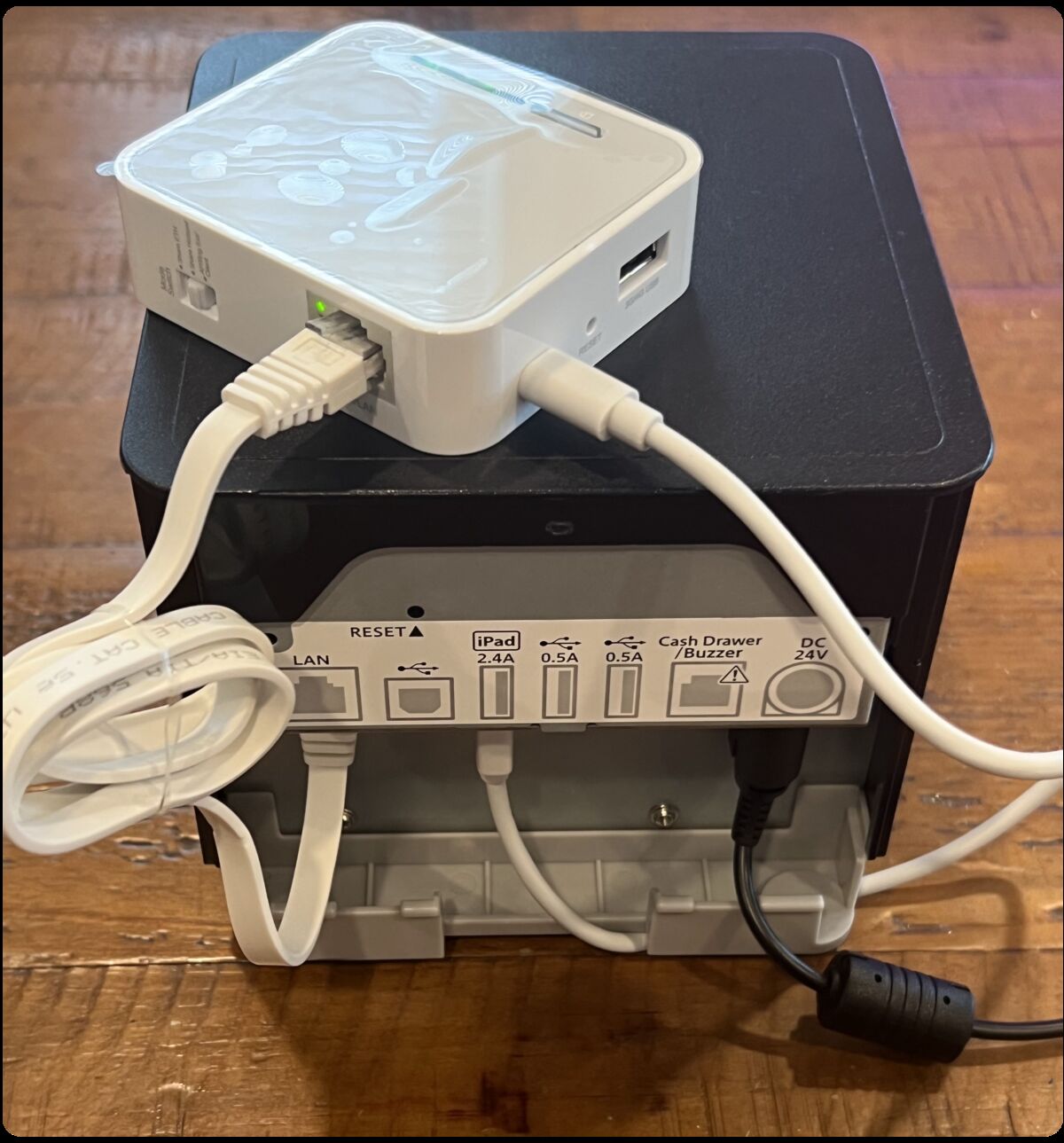
Is the printer plugged into a mini router?
The mini router is the small white device that lets your Jane printer work off your store's WiFi connection. If your printer connects directly to a wall jack or main router, choose No.
Fast fix · Mini router
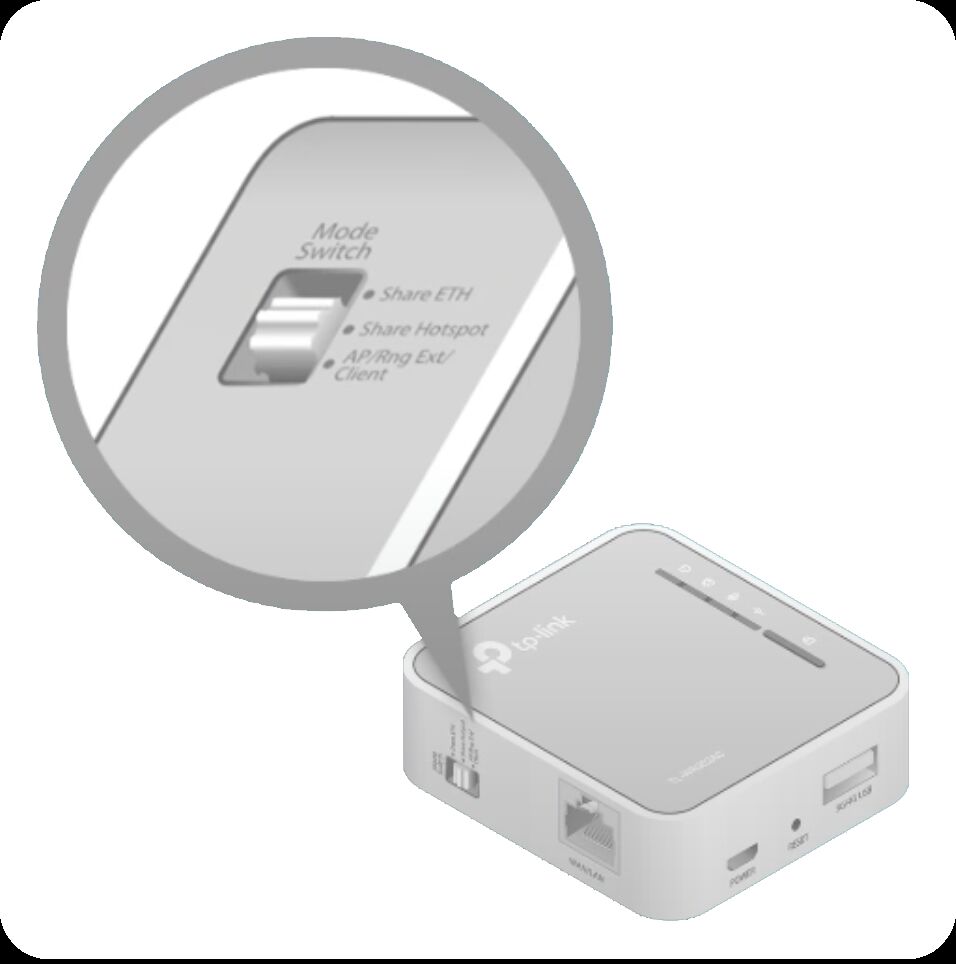
Check the Mode Switch on the side of the mini router
Make sure the Mode Switch is set to "Share Hotspot" — the middle position. If you're not sure, move it up, then down, then back to the middle.
Fast fix · Mini router
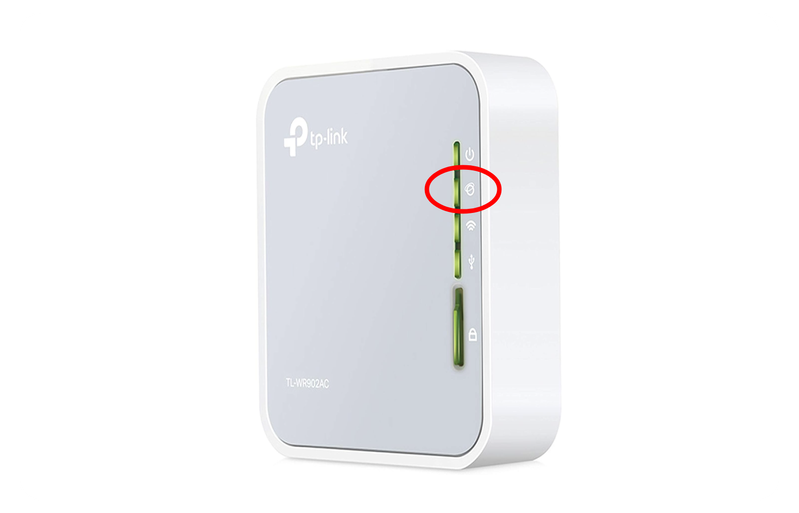
Is the Share Hotspot LED solid green, or blinking/off?
The Share Hotspot LED is the second light from the top on the mini router.
Fix · Mini router WiFi
Reconnect the mini router to your store's WiFi
Walk through the mini router WiFi steps to reconnect it to your store's network.
Fast fix · Ethernet
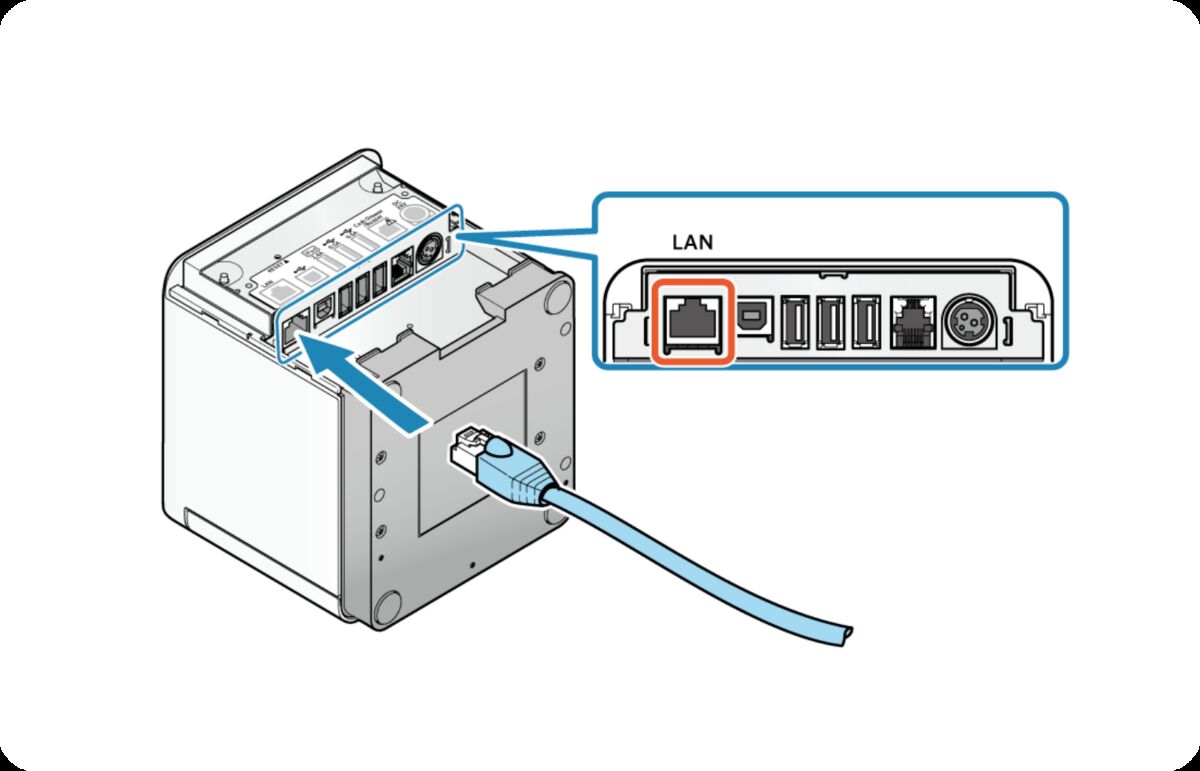
Re-seat the ethernet cable
Unplug the ethernet cable from both ends:
- The LAN port on the back of the printer
- The LAN port on the networking device it's plugged into
Then plug it back in firmly on both ends.
Check
Did this solve the issue?
The printer's Power LED should be solid blue and the WiFi Router Network LED should be solid green.


Step 2 · Printer Power
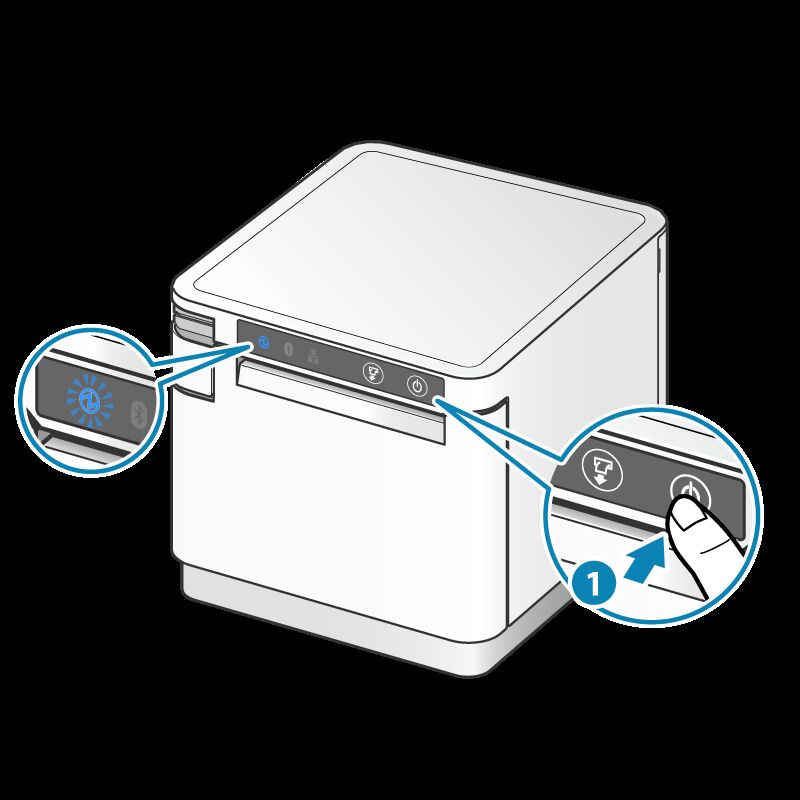
Power on the printer
Tap the power button once. Look for a blue or red LED light on the left side of the operation panel — that tells you whether the printer powered on.
Fix · Power
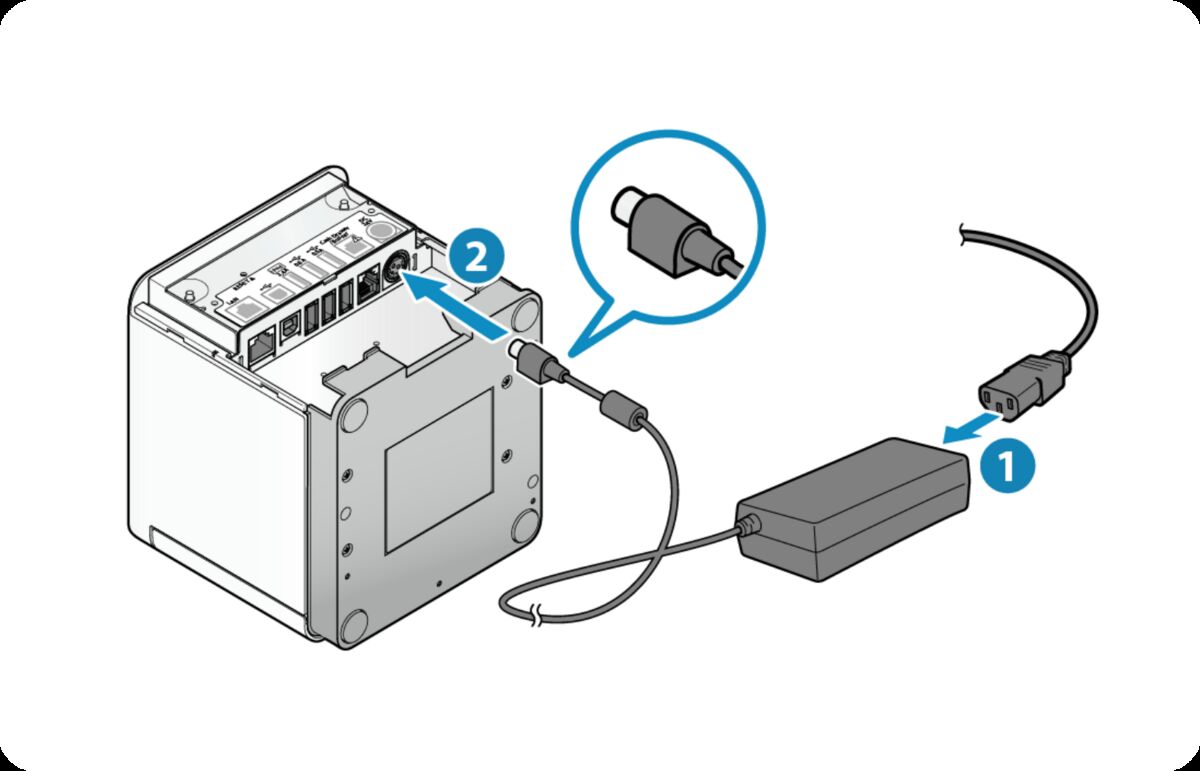
Check the power cable and outlet
Make sure both the power brick and the cable are securely plugged in — at the printer end and at the wall outlet. Tap the power button again. If still not powering on, try a different power outlet.
Escalate
Printer won't power on after checking the cable and outlet
This usually points to a local hardware or electrical issue that's fastest to diagnose on-site.
Next steps:
- Loop in your store's IT team. They can check the outlet, swap the power cable, and confirm whether the printer hardware is the problem.
- No IT team? Contact Star Micronics, the printer manufacturer:
- Phone: (848) 216-3304
- Hours: Mon–Fri, 9:00 AM – 5:00 PM EST
- If IT or Star Micronics confirms a hardware issue, we'll replace the printer. Use the buttons below to send us the details.
Check · Power LED
Power LED is flashing
A flashing Power LED points to a specific paper or cover issue. Find the pattern that matches your printer below and follow the fix. Once it's resolved, the Power LED returns to solid blue.
Low paper

The paper roll is running low and will be used up soon. Swap in a fresh roll when you get a chance so you don't run out in the middle of an order.
Out of paper

The printer is out of paper. Load a fresh roll of 3 1/8" thermal receipt paper. Need more? Order receipt paper — be sure to get 3 1/8" thermal receipt paper, which is the size this printer uses.
Cover open

The front cover isn't fully closed. Press the cover down firmly until it clicks shut — the Power LED should turn solid blue.
Cutter error

A receipt is jammed in the cutter. Open the printer to clear it:
- Press and hold the Power button to turn the printer off.
- Pull the release lever on the top-left of the front to open the front cover.
- Lift out the paper roll and gently remove any jammed or torn paper from around the cutter. Don't use metal tools or force the blade.
- Re-seat the roll, close the cover firmly until it clicks, then power the printer back on.
Escalate
Power LED still flashing after troubleshooting
Before escalating, try these:
- Confirm the paper roll is 3 1/8" thermal receipt paper, the correct size for this printer.
- Confirm the printable side is facing the print head (rolls are sensitive to orientation).
- If you have a fresh roll on hand, swap it in.
If still flashing:
- Loop in your store's IT team. They can take a closer look at the printer on-site and confirm whether it's a hardware issue.
- No IT team? Contact Star Micronics, the printer manufacturer:
- Phone: (848) 216-3304
- Hours: Mon–Fri, 9:00 AM – 5:00 PM EST
- If IT or Star Micronics confirms a hardware issue, we'll replace the printer. Use the buttons below to send us the details.
Step · Network LED
Check the Network LED on the front of the printer
Do you see a solid green Network LED?

Fix · Network
Re-seat the ethernet / LAN cable
Unplug and reconnect the ethernet/LAN cable so it's securely plugged in on both the printer and the wallport/router. The Network LED should turn solid green once the cable is properly reconnected.
Escalate
Network LED isn't lighting up
This usually means the printer isn't getting a network signal — a local network or hardware issue. Before escalating, try:
- Confirm the ethernet cable is plugged into the LAN port on both the printer and the networking device (the port is labeled LAN).
- Try a different ethernet cable if you have one available.
- Confirm the router/switch the printer connects to is powered on and otherwise working.
If still no Network LED:
- Loop in your store's IT team. Network issues are fastest to diagnose on-site — they can check the router, switch, and cabling end-to-end.
- No IT team? Contact Star Micronics, the printer manufacturer:
- Phone: (848) 216-3304
- Hours: Mon–Fri, 9:00 AM – 5:00 PM EST
- If IT or Star Micronics confirms a hardware issue, we'll replace the printer. Use the buttons below to send us the details.
Escalate
Network LED still blinking or off after ethernet reseat
The Network LED should be solid green when the printer is connected. Before escalating:
- Try a different ethernet cable if you have one.
- Confirm the router/switch is online.
If still blinking or off:
- Loop in your store's IT team. This is a local network issue and is fastest to diagnose on-site.
- No IT team? Contact Star Micronics, the printer manufacturer:
- Phone: (848) 216-3304
- Hours: Mon–Fri, 9:00 AM – 5:00 PM EST
- If IT or Star Micronics confirms a hardware issue, we'll replace the printer. Use the buttons below to send us the details.
Final · Test print
Print a test receipt
This sends an actual print job from Jane through Cloud Print to the printer — an end-to-end check. If you have access to the Hardware section in the Business Dashboard, navigate to business.iheartjane.com › Settings › Hardware › click Send test print. Or, log in to retail.iheartjane.com and print a previously completed order. In most cases, receipts will print within a minute.
Check · Self-print
Run a self-print to confirm the connection
Even when the lights look right, a printer that was unplugged, reset, or lost power can quietly drop its connection to Jane — so receipts stop coming through. A self-print runs straight from the printer, with no network needed, and shows whether its network settings are still valid.
If you use a Jane mini router, plug the router into a wall outlet first (not powered through the printer) so the printer reboots on its own and pulls a valid network address.
To run a self-print:
- Hold the Power button for at least 1 second to turn the printer off.
- Hold down the Feed button.
- While holding Feed, press the Power button to turn the printer on.
- Release Feed once the self-print starts.
On the second receipt, near the bottom, find <<Star CloudPRNT>> and the CloudPRNT Service: line just below it. If it says Enabled, the printer doesn't need reconfiguring — it's a network issue, so contact your store's IT team. If it says Disabled, reach out to Jane to reconfigure (include your store name, location, and printer name, and confirm the receipt says Disabled — a photo helps). Full walkthrough: Self-print check.
Done
All set — your printer is fully operational
If you run into the same issue again, start at the top of this guide.
Escalate
Completed troubleshooting but test print failed
You've walked through the steps but the receipt didn't print. This usually means a local network or hardware issue that's fastest to diagnose on-site.
Next steps:
- Loop in your store's IT team. Share which steps you tried, what the Power LED and Network LED look like now, and any error messages. They can diagnose locally.
- No IT team? Contact Star Micronics, the printer manufacturer:
- Phone: (848) 216-3304
- Hours: Mon–Fri, 9:00 AM – 5:00 PM EST
- If IT or Star Micronics confirms a hardware issue, we'll replace the printer. Use the buttons below to send us the details.
Fix · Paper jam
Clear the paper jam
When paper gets stuck inside the printer, don't force or pull on it — that can damage the mechanism. Follow these steps to clear it safely.
- Hold the Power button (right side of the operation panel) for at least 1 second to turn the printer off.
- Press the Power button again to turn it back on, and release once the Power LED lights up. This returns the cutter blade to its normal position so the cover can open freely.
- Pull the opening lever to open the printer cover.
- Gently remove all of the jammed paper, making sure no fragments are left behind. Check that none remains in the paper roll holder or the paper exit — leftover scraps will cause another jam. Don't pull hard; if the paper won't come free, stop and use the escalation steps below.
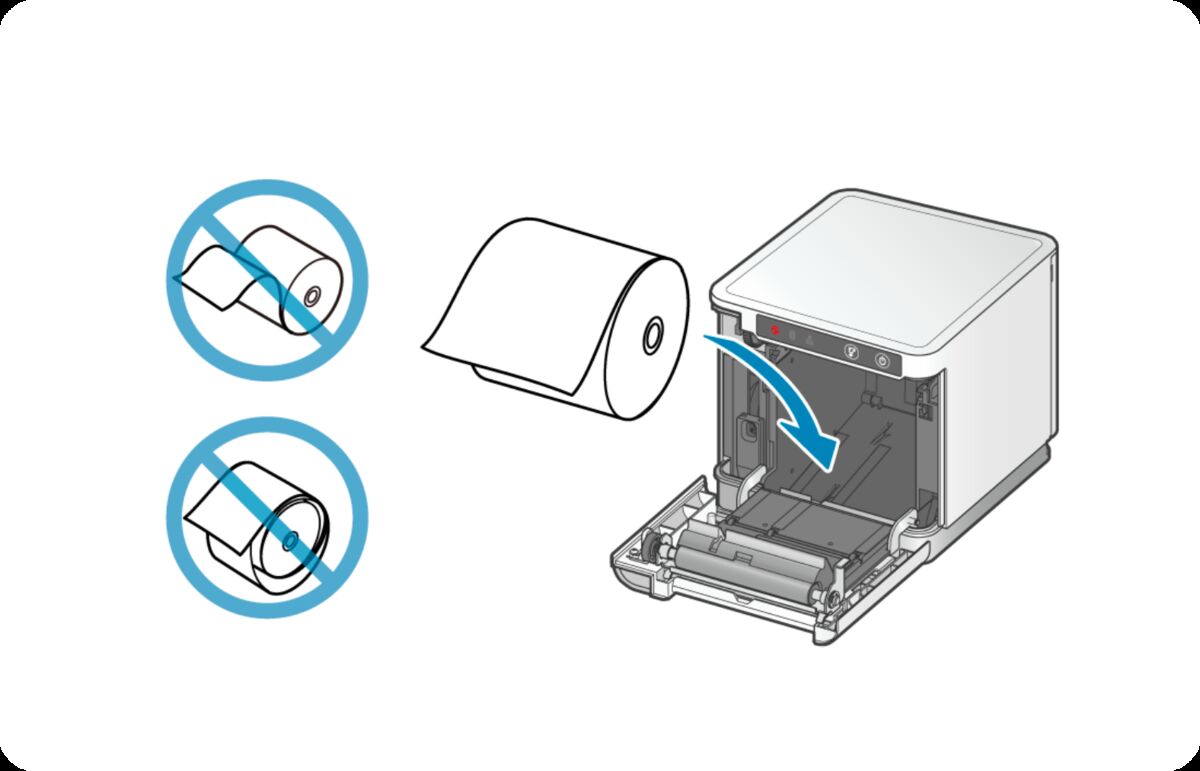
- Reload the paper roll so it feeds off the top of the roll (not the bottom), then close the cover firmly. The Power LED returns to solid blue once paper is seated correctly.
Prevent future jams
Wind the roll tightly before loading it, pull the paper edge out in a straight line, and don't tug receipts while they're printing or being cut. Clear away any receipts that pile up at the exit so they don't feed back in.
Escalate
Paper still jamming after re-seating
If clearing the jam and re-seating the roll didn't help, the print mechanism may need a closer look.
Next steps:
- Confirm the roll basics: correct size for the mC-Print3 (3 1/8" wide), tightly wound, feeding off the top.
- Loop in your store's IT team to check the print head for any visible damage or stuck debris.
- No IT team? Contact Star Micronics, the printer manufacturer:
- Phone: (848) 216-3304
- Hours: Mon–Fri, 9:00 AM – 5:00 PM EST
- If IT or Star Micronics confirms a hardware issue, we'll replace the printer. Use the buttons below to send us the details.
Fix · Blank or faint receipts
Check the paper roll orientation
Blank receipts almost always mean the paper is loaded backwards — thermal paper has a coated side that needs to face the print head. (Faint receipts are usually a print-head cleaning issue — see below.)
- Open the front cover by pulling the release lever on the top-left.
- Take out the paper roll. Make sure the paper feeds off the top of the roll, not the bottom — when the roll sits in the tray, the paper should roll down toward you and out the top of the printer.
- To confirm the thermal-coated side faces the right way: scratch the paper with your fingernail. The side that turns dark is the thermal side — that side needs to face down toward the print head.
- Re-seat the roll correctly and close the cover firmly.
- Send a test print from business.iheartjane.com › Settings › Hardware, or print a previous order from retail.iheartjane.com.
Faint receipts: clean the print head
If receipts print but the text is light, smudged, or patchy, the print head and roller need cleaning. Paper dust and residue build up over time and weaken the print. Star Micronics' daily-care guide walks through cleaning the print head and platen roller with a cotton swab and alcohol:
Star Micronics cleaning guideEscalate
Receipts still blank or faint after re-seating
If the paper is oriented correctly and receipts are still blank or faint, the issue is usually either the paper itself or the print head.
Before escalating, try:
- Swap in a fresh paper roll — the existing roll may be expired or damaged.
- Confirm the paper is 3 1/8" thermal receipt paper (not plain paper, not the wrong size).
If still blank or faint:
- Loop in your store's IT team to check the print head for dust or debris.
- No IT team? Contact Star Micronics, the printer manufacturer:
- Phone: (848) 216-3304
- Hours: Mon–Fri, 9:00 AM – 5:00 PM EST
- If IT or Star Micronics confirms a hardware issue, we'll replace the printer. Use the buttons below to send us the details.
Fix · Printer won't stop printing
Stop a runaway print job
If the printer keeps printing receipts or won't stop after one, it usually means a print job is stuck in the queue or duplicate orders were sent. This is almost always a software-side issue, not the printer hardware.
- In the Business Dashboard (business.iheartjane.com › Settings › Hardware), clear the stuck print jobs.
- If it's still printing, fully power off the printer for 10 seconds, then turn it back on.
Escalate
Printer still won't stop printing after clearing the queue and a power cycle
If clearing the print jobs and turning the printer off and on didn't help, reach out to our team so we can clear the backend queue from Jane's side.
Next steps:
- Turn the printer off and leave it off so it doesn't keep wasting paper.
- Use the buttons below to send us the details, including the steps you've already taken, so we can pick up where you left off.