Reference · Printer lights
What your printer lights mean
Every blinking or flashing light in one place. Find the light you're looking at below, match the pattern, and follow the fix.
Power LED (on the printer)
On the left side of the operation panel. When everything's normal it's solid blue — a flashing Power LED points to a specific paper or cover issue. Match the pattern below; once it's resolved the light returns to solid blue.

The paper roll is running low and will be used up soon. Swap in a fresh roll when you get a chance so you don't run out mid-order.

The printer is out of paper. Load a fresh roll of 3 1/8" thermal receipt paper. Need more? Order receipt paper — be sure to get the 3 1/8" thermal size this printer uses.

The front cover isn't fully closed. Press the cover down firmly until it clicks shut — the Power LED should turn solid blue.

A receipt is jammed in the cutter. Open the printer to clear it:
- Press and hold the Power button to turn the printer off.
- Pull the release lever on the top-left of the front to open the front cover.
- Lift out the paper roll and gently remove any jammed or torn paper from around the cutter. Don't use metal tools or force the blade.
- Re-seat the roll, close the cover firmly until it clicks, then power the printer back on.
If the Power LED keeps flashing after the steps above, confirm the roll is 3 1/8" thermal paper and that the printable side faces the print head, then swap in a fresh roll if you have one. Still flashing? See Still stuck below.
Network LED (front of the printer)
On the front of the printer. Solid green means the printer is connected to the network.

The printer is on the network. Nothing to do here.
Re-seat the ethernet/LAN cable so it's securely plugged in on both the printer and the wall port or router. The Network LED should turn solid green once the cable is properly reconnected.
This usually means the printer isn't getting a network signal — a local network or hardware issue. Before escalating:
- Confirm the cable is in the LAN port (labeled LAN) on both the printer and the networking device.
- Try a different ethernet cable if you have one.
- Confirm the router or switch the printer connects to is powered on and working.
Still off or blinking? See Still stuck below.
Mini router LED (Share Hotspot)
Only applies if Jane sent you a mini router. The Share Hotspot LED is the second light from the top on the mini router.
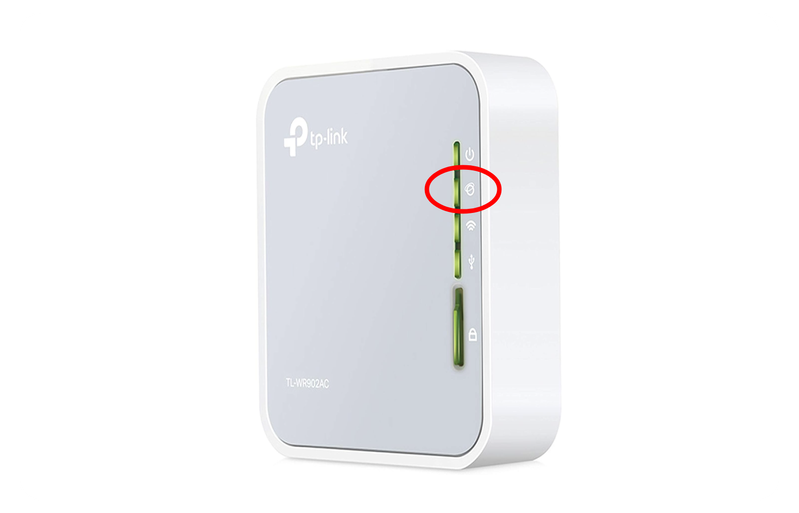
The mini router is connected to your store WiFi and bridging the printer onto it. Nothing to do here.
The mini router has lost its WiFi connection. Reconnect it to your store network using the mini router WiFi steps. If everything was working before and the store WiFi changed, you'll re-run the same setup with the new network and password.
Lights look right but receipts still aren't printing?
Correct-looking lights don't always mean the printer is connected. If it was unplugged, reset, or lost power, it can quietly drop its connection to Jane while the lights still look normal. A self-print confirms whether its network settings are still valid.
If the printer was disconnected, it'll need its network settings reconfigured.
Run a self-print checkStill stuck?
If a light won't settle after the steps above, loop in your store's IT team first — most paper, cover, and network issues are fastest to resolve on-site. No IT team? Contact Star Micronics, the printer manufacturer, at (848) 216-3304, Mon–Fri, 9:00 AM – 5:00 PM EST.
If IT or Star Micronics confirms a hardware issue, reach out and we'll help with a replacement.
Email us at partnersuccess@iheartjane.com. Copy the address and the template, then paste them into your email.